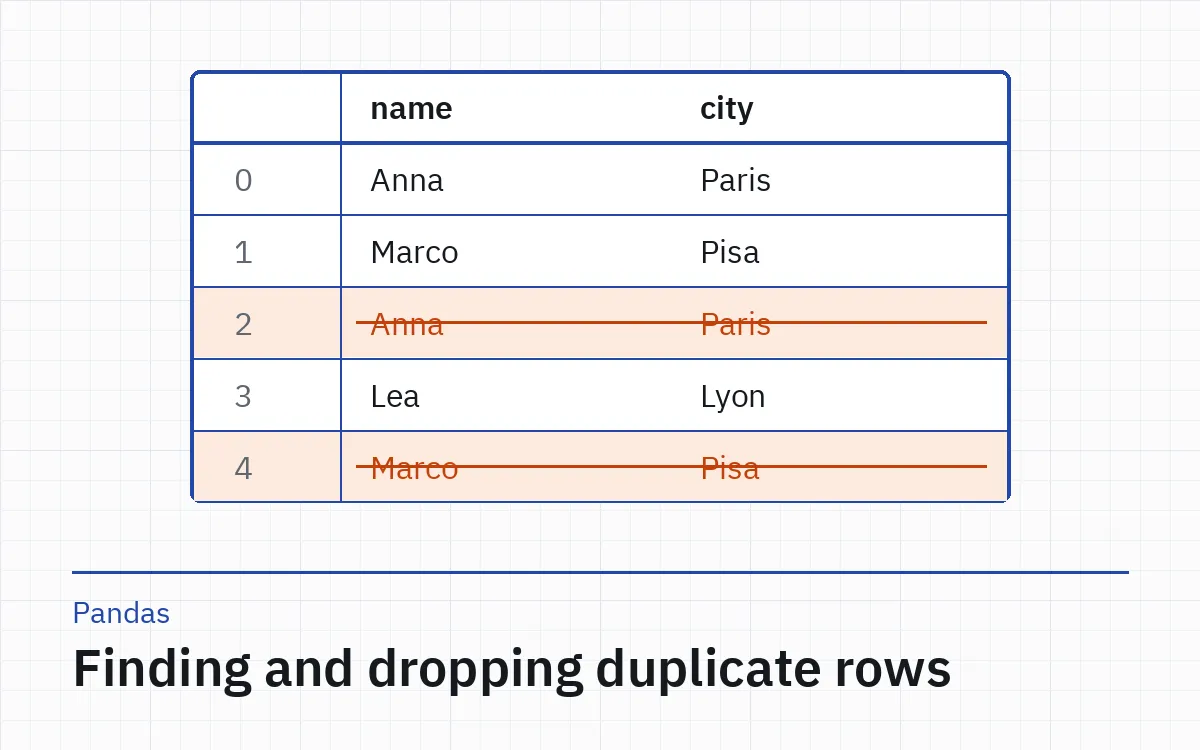
 image from pixabay
Real-world data are generally noisy and messy. In that case, we must perform some cleaning operation on it before doing an analysis. Pandas give us a few methods to detect duplicated entries and remove them during the data preprocessing process.
In article, we’ll work with Africa Cup of Nations dataset upload on Kaggle by Mohammad Essam. This dataset is composed of three CSV files and we are going to import one of them and work with.
import pandas as pd
df_players = pd.read_csv('Africa Cup of Nations Players.csv')
Throughout this story, we’ll talk about DataFrame.duplicated() and DataFrame.drop_duplicates().
1. DataFrame.duplicated()
DataFrame.duplicated() is a pandas method that checks all the DataFrame and returns a boolean Series to express duplicate rows. With the aid of this method, we can count the number of duplicate and non-duplicate rows, filter datasets, and so on. The general signature of df.duplicated() is:
DataFrame.duplicated(subset=None, keep='first')
where:
- subset can take a list of columns to use for duplicate rows identification
- keep indicate the position of occurrence to keep and which will not be marked as duplicate. The set of values that it can have is first, last, and False.
df_players.duplicated()[712:721]
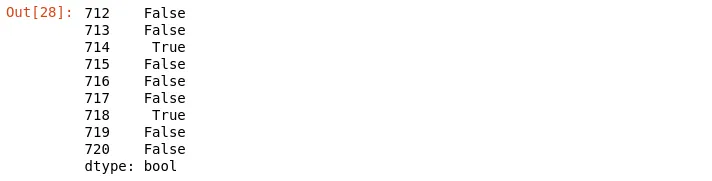
As shown in the above image, non-duplicate rows have the boolean False and duplicate ones have True.
We can find duplicate rows in our data base on Year and PlayerName columns.
result = df_players.duplicated(subset=['Year','PlayerName'])
df_players[result].head()
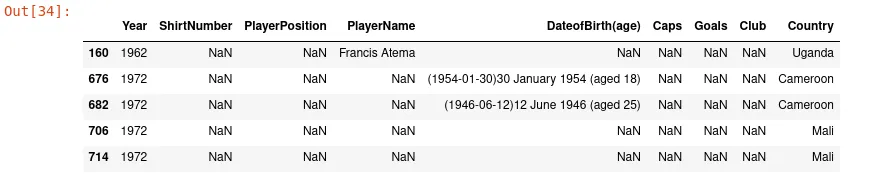
You can specify any number of columns you want. By default, this method finds duplicate rows over all columns. In the previous example, we use the result of df.duplicate() which is boolean Series to filter the DataFrame and only get duplicated rows. Moreover, we can invert that result, and only get the non-duplicated rows always based on Year and PlayerName as follow:
result = df_players.duplicated(subset=['Year','PlayerName'])
df_players[~result].head()
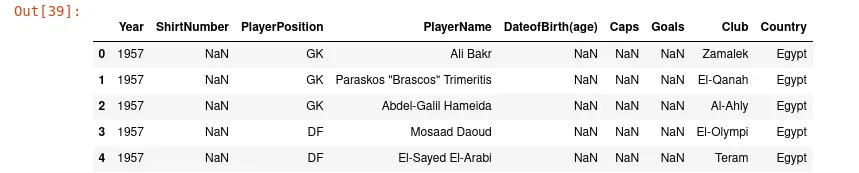
We use the ~ sign the invert the result of df.duplicated(). To rephrase it, we transform boolean Series return by df.duplicated() changing True values to False and False to True. That’s the role of ~ sign.
Get DERICK TEMFACK’s stories in your inbox
Join Medium for free to get updates from this writer.
Remember me for faster sign in
The parameter keep of df.duplicated() works in three manners.
- If we set it to first when the method searches duplicate rows, the first occurrence in the set of same duplicate rows is not marked as duplicated. It’s the default behavior of this method.
- last do the inverse of the first
- Set keep to False mark all occurrence of rows that is at least two as duplicated without conserving one of them.
df_players[df_players.duplicated(keep=False)].head()
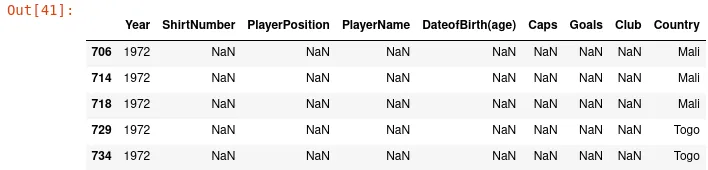
In this section, we try to give an overview of DataFrame.duplicated() method. In the next section, we’ll take about DataFrame.drop_duplicates()
2. DataFrame.drop_duplicates()
Now, we know how to detect duplicated rows in our data, and based on that, we can filter our dataset to have more accurate data. Besides df.duplicated(), pandas offer one method to directly remove duplicate rows without an extra step. This method under the wood firstly finds duplicate rows as we show with df.duplicates() before deleting this selection. His signature is:
DataFrame.drop_duplicates(subset=None, keep='first', inplace=False, ignore_index=False)
where:
- subset is a list of columns to use to determine duplicate rows. By default, this method search duplicate rows with all columns.
- keep work as the same as in df.duplicated(). This parameter determines the occurrence of duplicate rows to keep in the set of same duplicate rows.
- inplace indicate if we’ll work directly in the same instance of dataframe or we’ll create a copy to work with it and return the result dataframe.
display('Before drop duplicates===>',df_players.shape)
display('After drop duplicates===>', df_players.drop_duplicates().shape)
Output:
'Before drop duplicates===>'
(7534, 9)
'After drop duplicates===>'
(7514, 9)
If we compare the number of rows before df.drop_duplicates() and the number after df.drop_duplicates(), we observe the number of rows has decreased due to the fact there have been removed.
df_players.drop_duplicates(subset=['Year','PlayerName']).shape
Output:
(7489, 9)
With the previous code, we make a drop_duplicates() action based on Year and PlayerName columns. The duplicate rows are more in this case.
By default, inplace has a False value. When we set it to True, the method return NoneType as a result of dropping operation.
display(type(df_players.drop_duplicates(subset=['Year','PlayerName'])))
display(type(df_players.drop_duplicates(subset=['Year','PlayerName'], inplace=True)))
Output:
pandas.core.frame.DataFrame
NoneType
When inplace=False, drop_duplicates() return a DataFrame and when it’s True, drop_duplicates() return NoneType. You can go into pandas documentation for this method to have more.
Conclusion
In this article, we give you an overview of how to work with duplicate data with Pandas. We saw that pandas offer duplicated() method and drop_duplicates() to deal with duplicate data. You can find the source code of this story here. This article is written in part of the data insight online program.
This article is originally published at datainsightonline